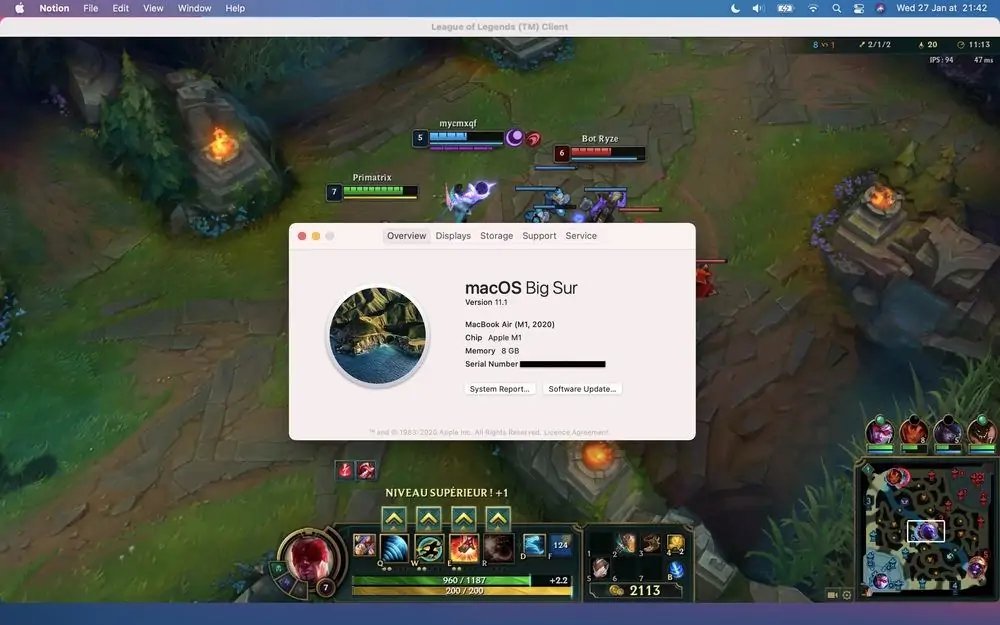
Dreaming of climbing the ranks in Summoner’s Rift from your MacBook? The question of "can LoL run on Mac" is one that plagues many aspiring League of Legends players in the Apple ecosystem. Good news: the answer is a resounding yes, with a few caveats to ensure a smooth and victorious gaming experience.
At a glance:
- League of Legends does have a native macOS client, so you don’t need workarounds right off the bat.
- Performance is generally good, especially on Apple Silicon Macs (M1, M2, M3).
- You might need to tweak a few in-game and macOS settings to optimize performance and minimize lag.
- Keep your macOS updated for the best compatibility and stability.
- Knowing your Mac’s specs is crucial for setting realistic graphics expectations.
LoL on Mac: The Lay of the Land
Riot Games officially supports League of Legends on macOS. This means you can download a dedicated Mac client directly from their website, avoiding the need for emulators or virtual machines (though those are options). This native support is a huge win for Mac gamers, offering a more streamlined experience than you might expect. Play LoL on your Mac for the step-by-step installation guidance..
Why a Native Client Matters
Using a native client bypasses the performance hit you'd typically experience with emulators like Wine or virtual machines like Parallels. These tools add an extra layer of processing, which can significantly reduce your frame rates and introduce input lag—the bane of any serious LoL player. A native client speaks directly to your Mac's hardware, translating into smoother gameplay.
Apple Silicon vs. Intel: Performance Deep Dive
While "can LoL run on Mac" has a simple yes/no answer, the how well part requires a little more nuance. The type of Mac you have—specifically whether it's powered by Apple Silicon (M1, M2, M3) or an Intel processor—significantly impacts performance.
Apple Silicon: The Clear Winner
Apple Silicon Macs, especially those with more RAM, generally offer impressive League of Legends performance. Thanks to the efficiency of the chips, and the Rosetta 2 translation layer (for older games), you’ll likely see higher and more stable frame rates compared to older Intel-based Macs.
- M1 Max (32 GB RAM): Expect 90+ FPS on Very High settings. A sweet spot for high-fidelity visuals and competitive responsiveness.
- M1 Pro (16 GB RAM): Delivers a solid 70+ FPS on Medium settings, providing a balance between graphical fidelity and performance.
- M1 (13-inch, 8 GB RAM): Can surprisingly push 80-100 FPS on High settings, showing the efficiency of Apple Silicon even on entry-level models.
- M1 MacBook Air: Even the fanless MacBook Air can achieve a playable 60 FPS on Max settings. That's some serious efficiency.
Intel Macs: Still Viable, But With Caveats
While LoL is playable on Intel-based Macs, you'll likely need to make more compromises to achieve a smooth frame rate. Older Intel Macs, especially those with integrated graphics, might struggle to maintain a consistent 60 FPS even on lower settings.
- Example: An older MacBook Pro (Intel i5, 8 GB RAM, integrated Intel Iris graphics) might only achieve 30-40 FPS on low settings.
Essential Settings for Peak Performance in LoL on Mac
Okay, you've established that "can LoL run on Mac" is a yes. Now, how do you make it sing? Here’s a breakdown of settings, both in-game and macOS, that can significantly improve your League of Legends experience:
In-Game Graphics Tweaks
- Enable Metal: In the graphics settings, ensure that Metal is enabled. Metal is Apple's low-level graphics API, and it can provide a performance boost compared to older APIs.
- Adjust Effects and Shadows: If you're experiencing lag, reduce the quality of effects and shadows. These are often the most performance-intensive settings.
- Toggle "Hide Eye Candy": This setting minimizes visual clutter and can provide a noticeable FPS boost, especially during team fights.
- Resolution Matters: Ensure your in-game resolution matches your Mac's native resolution for optimal sharpness and performance.
- Video Settings: Set the graphics video settings to “Increased Performance” to prioritize frame rate over visual fidelity.
- Interface Tweaks: Disable HUD animations, emote bubble display, and fist bumps in the “Interface” setting tab to reduce unnecessary processing.
- Frame Rate Cap: Adjust the frame rate cap to match your monitor's refresh rate for a smoother, stutter-free experience.
- Sound FX Volume: Setting sound FX volume to max can sometimes highlight audio bottlenecks that are causing performance hiccups.
macOS System Optimizations
- Close Background Apps: Before launching LoL, close any unnecessary applications running in the background. These can consume valuable system resources and impact performance.
- "Shake Mouse Pointer to Locate": Uncheck "Shake mouse pointer to locate" in Accessibility settings. This feature can sometimes interfere with mouse input in games.
- Hot Corners: Disable or adjust Hot Corners in Desktop & Screen Saver settings. Accidentally triggering a Hot Corner during a crucial moment can be disastrous.
Troubleshooting Common LoL on Mac Issues
Even with optimal settings, you might encounter some issues. Here's a quick troubleshooting guide:
- Lag Spikes: If you experience sudden drops in frame rate, check your internet connection. A wired connection is generally more stable than Wi-Fi. Also, ensure no other devices on your network are heavily using bandwidth.
- Game Crashes: If LoL crashes frequently, try repairing the game files through the Riot Client.
- Graphical Glitches: If you see strange graphical artifacts, update your graphics drivers (though macOS handles this automatically, it's worth checking for system updates).
- Stuttering: Stuttering often indicates an issue with your storage drive. If possible, install LoL on an SSD for faster loading times and smoother gameplay.
A Quick Case Snippet: M1 MacBook Air Optimization
A user with an M1 MacBook Air reported experiencing occasional lag spikes during team fights. After disabling HUD animations and reducing shadow quality, their frame rate stabilized, resulting in a noticeably smoother gaming experience. The key takeaway? Even small adjustments can make a big difference.
Is Your Mac Up to the Task? System Requirements Explained
Before diving in, take a moment to assess whether your Mac meets the minimum or recommended system requirements. Here's a quick breakdown:
| Requirement | Minimum | Recommended |
|---|---|---|
| CPU | Intel Core i5-750 | Intel Core i5-3300 |
| GPU | AMD HD 6570, Intel HD 4600 | AMD Radeon HD 6950, Intel UHD 630 |
| VRAM | 1 GB | 2 GB |
| RAM | 2 GB | 4 GB (8 GB is ideal) |
| Storage | 12 GB HDD | 16 GB SSD |
| OS Version | macOS 10.13.6 | macOS 11 |
| Important Note: macOS 10.14 or higher is generally recommended for smoother gameplay. Also, prioritize having at least 8 GB of RAM for a more comfortable experience. |
Quick Answers: Your LoL on Mac FAQs
- Q: Is League of Legends officially supported on macOS 12 and 13?
- A: No. League of Legends is not officially supported on macOS 12 and 13.
- Q: Does LoL run better on Apple Silicon or Intel Macs?
- A: Generally, Apple Silicon Macs offer superior performance and efficiency.
- Q: Do I need to use an emulator to play LoL on Mac?
- A: No. Riot Games provides a dedicated macOS client.
- Q: What’s the best way to improve LoL performance on my Mac?
- A: Optimize in-game graphics settings, close background apps, and ensure your macOS is up to date.
Level Up Your Game: Actionable Steps You Can Take Now
So, "can LoL run on Mac?" Absolutely. Now it's time to make the game run well. Here’s your quick-start action plan:
- Check your Mac's specs: Identify your CPU, GPU, RAM, and storage.
- Update macOS: Ensure you're running the latest version of macOS for optimal compatibility and performance.
- Download the LoL client: Head to the Riot Games website and download the macOS installer.
- Optimize in-game settings: Follow the graphics tweaks outlined above.
- Monitor performance: Play a few practice games and monitor your frame rate. Adjust settings as needed.
By following these steps, you'll be well on your way to dominating the Rift from your Mac. Good luck, summoner!