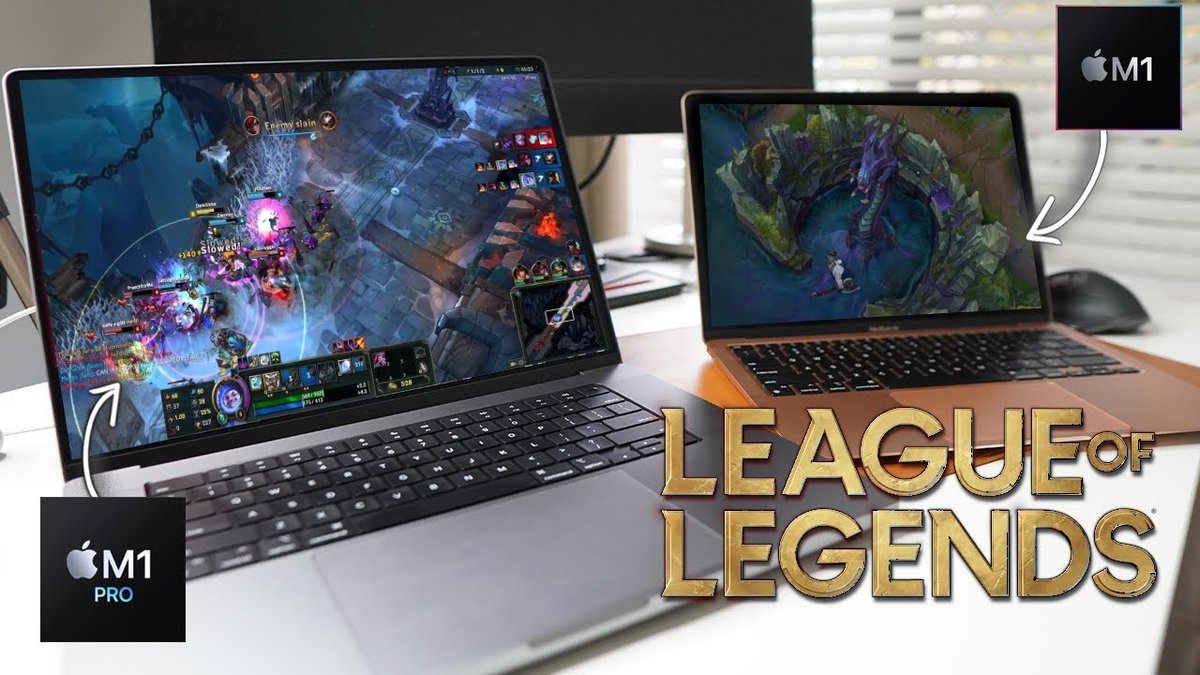
For the bigger picture and full context, make sure you read our main guide on Can You Play League Of Legends On Mac? Heres How.
markdown
Dreaming of dominating the Rift on your MacBook Pro? You're not alone. Many gamers wonder if their sleek Apple laptop can handle the fast-paced action of League of Legends. The good news? It's entirely possible, and with a few tweaks, you can enjoy a surprisingly smooth gaming experience.
At a glance:
- Discover how well your specific MacBook Pro model will likely run LoL.
- Learn essential settings tweaks for optimized performance.
- Understand the impact of Apple Silicon vs. Intel processors.
- Identify potential bottlenecks and how to address them.
- Decide if dual-booting Windows is worth it for enhanced gameplay.
How Well Does Your MacBook Pro Handle League of Legends? Reality Check
The performance of League of Legends on your MacBook Pro depends heavily on the model and its specifications. Factors like the processor (Intel or Apple Silicon), RAM, and graphics card all play crucial roles. Older Intel-based models can still run LoL, but might require lower settings for a playable framerate. Newer Apple Silicon Macs, even the base models, often deliver impressive performance.
Here's a general idea based on the chip:
- M1/M2/M3 MacBook Pro (All Variants): Expect a solid experience. Even the base M1 can handle High settings. Pro and Max chips will let you crank up the graphics without significant frame drops.
- Intel MacBook Pro (2020 and Earlier): Performance varies widely. Newer Intel i5 and i7 models with dedicated graphics should be playable on Medium settings. Older models or those with integrated graphics may need Low settings.
Example: My friend with a 2017 Intel MacBook Pro (i5, integrated graphics) had to dial everything down to Low and still experienced occasional lag spikes during intense team fights. Upgrading to an M1 MacBook Air drastically improved his gameplay.
Apple Silicon vs. Intel: The Performance Difference
Apple's transition to its own silicon has significantly impacted gaming on Macs. Apple Silicon chips, like the M1, M2, and M3, offer a significant performance boost compared to older Intel processors, especially in graphics-intensive tasks. This translates to higher framerates and smoother gameplay in League of Legends.
While League of Legends can run natively on macOS, it's not officially optimized for Apple Silicon. However, Rosetta 2, Apple's translation layer, allows the game to run seamlessly. Benchmarks show surprisingly good performance, often exceeding expectations.
Consider this: An M1 MacBook Pro generally outperforms an equivalent Intel MacBook Pro in League of Legends, even though the game isn't specifically designed for the M1 chip. This is due to the M1's superior GPU and efficient architecture.
Optimizing Your MacBook Pro for Peak LoL Performance
Even with a powerful MacBook Pro, optimizing your settings can further enhance your League of Legends experience. Start with these adjustments:
- Graphics Settings: Launch LoL and navigate to the graphics settings.
- Enable Metal API: This is crucial for modern Macs as it leverages Apple's graphics framework for better performance.
- Adjust Quality: Start with Medium settings and gradually increase them until you find a balance between visual fidelity and framerate. Pay close attention to shadows and effects, as these can significantly impact performance.
- Disable Anti-Aliasing: While it improves image quality, anti-aliasing can be demanding on the GPU. Try disabling it or setting it to a lower level.
- macOS Settings:
- Close Background Apps: Before launching LoL, close any unnecessary applications to free up system resources.
- Activity Monitor: Use Activity Monitor (located in /Applications/Utilities) to identify any resource-hogging processes.
- Energy Saver: Ensure your MacBook Pro is plugged in and set to "High Performance" mode in Energy Saver settings.
- In-Game Settings:
- Cap Framerate: This can prevent your GPU from overheating. A stable 60 FPS is often preferable to an unstable higher framerate.
- Lower Audio Quality: While subtle, reducing audio quality can free up some processing power.
Pro Tip: Monitor your MacBook Pro's temperature while playing. If it gets excessively hot, consider lowering the graphics settings further or using a cooling pad.
Decoding the Minimum and Recommended Specs
Riot Games provides minimum and recommended system requirements for League of Legends. While these are a good starting point, here's how they translate to real-world MacBook Pro performance:
| Requirement | Implication for MacBook Pro |
|---|---|
| Minimum OS | macOS X 10.10 (Yosemite) or later - Most modern MacBook Pros easily meet this. |
| Minimum CPU | Intel Core i3 - Older models might struggle; Apple Silicon chips far exceed this. |
| Minimum RAM | 4GB - Technically playable, but 8GB (or more) is highly recommended for smoother multitasking and gameplay. |
| Minimum GPU | NVIDIA GeForce 8600M GT / AMD Radeon HD 2600 / Intel HD Graphics 3000 - Integrated graphics will likely require Low settings and may still struggle. |
| Recommended OS | macOS X 10.15 (Catalina) or later - Ensures compatibility and access to the latest graphics drivers. |
| Recommended CPU | Intel Core i5 - Apple Silicon chips easily surpass this. |
| Recommended RAM | 8GB - Ideal for a smooth and responsive experience. |
| Recommended GPU | NVIDIA GeForce GTX 560 / AMD Radeon HD 6870 - Dedicated graphics cards are generally better for consistent performance. |
| Takeaway: Don't solely rely on meeting the minimum specs. Aim for the recommended specs or higher, especially regarding RAM and graphics, for a consistently enjoyable experience. |
When Dual-Booting Windows Becomes a Viable Option
While League of Legends runs natively on macOS, some users opt to dual-boot Windows using Boot Camp Assistant. This allows them to run the Windows version of the game, which can sometimes offer slightly better performance or compatibility.
Reasons to consider dual-booting:
- Potential Performance Gains: In some cases, the Windows version of LoL may be better optimized for specific hardware configurations.
- Wider Game Compatibility: If you want to play other games that aren't available on macOS, dual-booting provides access to the vast Windows gaming library.
- Driver Support: Windows often has more up-to-date drivers for certain hardware components, which can improve performance.
However, dual-booting also has drawbacks: - Disk Space: You'll need to allocate a significant portion of your hard drive to the Windows partition.
- Complexity: Setting up and managing a dual-boot system can be technically challenging for some users.
- Rebooting: Switching between macOS and Windows requires rebooting your MacBook Pro.
Before committing to dual-booting, try optimizing your League of Legends settings within macOS first. If you're still experiencing performance issues, then consider this more drastic option. Here's how to play LoL on Mac, including using Boot Camp.
Quick Answers for Common LoL on MacBook Pro Questions
- Q: Can I play League of Legends on a MacBook Pro with integrated graphics?
- A: Yes, but you'll likely need to lower the graphics settings to Low for playable framerates. Performance may still be inconsistent, especially during intense team fights.
- Q: How much storage space does League of Legends require?
- A: The game needs at least 22GB after installation and updates.
- Q: Will League of Legends run better on an M1 Pro MacBook Pro compared to an M1 MacBook Air?
- A: Yes, the M1 Pro's more powerful GPU and better thermal management will generally result in higher and more stable framerates.
- Q: Is Rosetta 2 slowing down my League of Legends performance on Apple Silicon?
- A: While Rosetta 2 does introduce a slight performance overhead, it's generally minimal enough that the Apple Silicon chip still outperforms comparable Intel chips.
- Q: Should I upgrade my RAM for better League of Legends performance?
- A: If you're running with 4GB of RAM, upgrading to 8GB or 16GB will likely improve performance, especially if you're multitasking or running other applications in the background.
Your League of Legends MacBook Pro Playbook: A Quick Start Guide
Follow these steps to get playing quickly:
- Download and Install: Get the macOS client from the official Riot Games website.
- Initial Settings: Launch the game and navigate to the graphics settings. Enable Metal.
- Performance Test: Start a practice game to assess your baseline framerate.
- Adjust Gradually: Modify graphics settings (shadows, effects, anti-aliasing) incrementally, testing performance after each change.
- Monitor Temperature: Keep an eye on your MacBook Pro's temperature, especially during extended gameplay.
- Close Background Apps: Shut down any unnecessary applications before launching LoL.
With these steps, you'll be well on your way to enjoying League of Legends on your MacBook Pro! Experiment with settings to find the sweet spot that balances visual quality and smooth performance for your specific model.