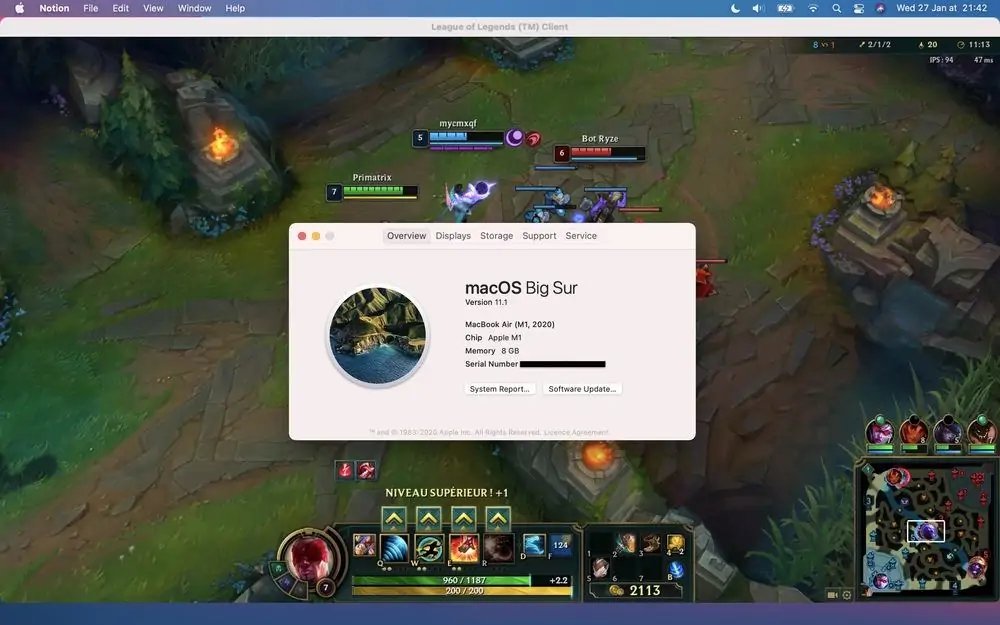
Dreaming of dominating the Rift on your MacBook? Many players successfully play League of Legends on Macbook, but performance depends heavily on the model you have and the settings you use. Before you dive in, it's crucial to know if your machine has what it takes and how to optimize the game for a smooth experience.
At a glance:
- Determine if your MacBook meets the minimum or recommended system requirements for League of Legends.
- Learn practical steps to optimize in-game settings and your MacBook's performance for smoother gameplay.
- Explore alternative gaming options and dual-booting solutions for improved performance.
- Understand the upcoming changes with Riot's Vanguard anti-cheat system on macOS.
Knowing Your MacBook's Limits: Minimum vs. Recommended Specs
The first step in your League of Legends on Macbook journey is understanding whether your hardware is up to the task. Riot Games provides both minimum and recommended system requirements. Don't just skim these – they are critical.
Minimum Requirements: This is the bare minimum to get the game running, but expect lower frame rates and potential lag, especially during intense team fights. Think of it as "playable, but not pretty."
- macOS X 10.10 (Yosemite)
- Intel Core i3
- 4GB RAM
- NVIDIA GeForce 8600M GT / AMD Radeon HD 2600 / Intel HD Graphics 3000
- 8GB storage
Recommended Requirements: Meeting these ensures a much smoother and more enjoyable gaming experience. Consider this the "sweet spot" for decent graphics and consistent performance. - macOS X 10.15 (Catalina)
- Intel Core i5
- 8GB RAM
- NVIDIA GeForce GTX 560 / AMD Radeon HD 6870
- 16GB SSD
Newer OS Specs - macOS 10.12 (Sierra) or newer
- 3 GHz or faster (Intel Core i5 or better recommended)
- 2 GB of RAM (4 GB or more recommended)
- Intel HD Graphics 4000 or better
- 12 GB of free disk space
For example, if you're rocking an older MacBook Air with only 4GB of RAM and integrated Intel HD Graphics, you'll likely struggle, even with the lowest settings. However, if you're using a newer MacBook Pro with an M1 or M2 chip and 8GB or more of RAM, you should have a much better experience.
Squeezing Out Performance: Optimizing League on Your MacBook
Even if your MacBook meets the minimum requirements, optimizing your settings is crucial for a smooth League of Legends on Macbook experience. Here's a breakdown of the key adjustments:
In-Game Graphics Settings: The First Line of Offense
These settings have the most direct impact on performance. Find them by clicking the gear icon within the League of Legends client.
- Resolution: Match your MacBook's native resolution if possible. If performance suffers, reduce it slightly. Dropping too low can paradoxically decrease FPS, as the GPU struggles with the scaling. Experiment!
- Character Quality: Lowering this to Medium or Low significantly reduces the load on your GPU. You might not notice a huge visual difference, but your FPS will thank you.
- Effects Quality: Set this to Low. This controls the detail of spell effects and other visual flourishes. Again, a small visual sacrifice for a significant performance gain.
- Shadows: Disable shadows entirely. Shadows are notoriously resource-intensive and often contribute little to the actual gameplay experience.
Fine-Tuning Your MacBook: Beyond the Game
Optimizing your MacBook itself can also significantly improve performance.
- Close Background Applications: Before launching League of Legends, close any unnecessary applications that are running in the background. These consume valuable RAM and CPU resources.
- Enable Low-Spec Mode: This setting, found in the "General" tab of the client settings, further optimizes the game for lower-end systems.
- Fullscreen Mode: Always play in fullscreen mode. This ensures that League of Legends has exclusive access to your GPU, maximizing performance.
- Enable Metal API: Metal is Apple's graphics API. For many MacBooks, enabling it can increase FPS.
- To enable Metal look for the "game.cfg" file to enable Metal API.
- Monitor Activity Monitor: Keep an eye on Activity Monitor (found in /Applications/Utilities) to identify any processes that are hogging resources.
Beyond League: Alternatives and Enhanced Solutions
If League of Legends simply isn't running well enough on your MacBook, even after optimization, don't despair. You have other options.
Exploring Alternative MOBAs
- Dota 2: Similar to League of Legends but with its own unique mechanics and strategic depth. It might run better depending on its optimization.
- Heroes of the Storm: A more accessible and team-oriented MOBA from Blizzard Entertainment.
- Smite: This game combines mythological gods with fast-paced action in a third-person MOBA.
- Vainglory: This mobile MOBA is optimized for touch controls with stunning visuals.
- Paladins: Developed by Hi-Rez Studios, it is a team-based shooter that incorporates MOBA elements into its gameplay.
The Dual-Boot Solution: Installing Windows with Boot Camp
For serious gamers, dual-booting Windows using Boot Camp Assistant is often the best solution. This allows you to run Windows natively on your MacBook, providing access to a wider range of games and potentially better performance.
- Benefits: Improved gaming compatibility and performance, access to Windows-exclusive games.
- Drawbacks: Requires creating a partition on your hard drive and installing Windows. This takes up significant disk space.
- Considerations: Make sure you have enough free storage space before you begin. Back up your important data, before you start, just in case.
Playing League of Legends from a USB Drive
This method provides a portable gaming solution, enabling you to play on different Macs without full installations each time.
- Download the Game Installer: Obtain the League of Legends installer onto a USB drive.
- Install on USB: During installation, select the USB drive as the destination.
- Plug and Play: Connect the USB drive to any Mac and launch the game directly from the drive.
The Future of Mac Gaming: Riot's Anti-Cheat and You
Riot Games is actively working to improve the gaming experience for Mac users, particularly regarding anti-cheat measures.
- Embedded Vanguard (mVG): Riot is set to introduce a new anti-cheat system specifically for macOS users. This system integrates directly into the game client and leverages macOS's native security features.
- Benefits: Aims to combat cheaters using macOS virtual machines, improving the integrity of the game. The anti-cheat software integrates directly into the game client without requiring additional installations.
- Timeline: Anticipated rollout for macOS by the end of 2024.
The changes are coming and will change the League of Legends on Macbook landscape.
Want a broader overview of playing League on your Mac? Play LoL on your Mac.
Practical Playbook: Getting League Running Smoothly on Your MacBook
Here's a quick start guide for getting League of Legends running well on your MacBook:
- Check Your Specs: Compare your MacBook's specifications against the minimum and recommended requirements. Be honest about where you fall on the spectrum.
- Update Everything: Ensure your macOS is up-to-date, and install any pending software updates.
- Optimize In-Game Settings: Start with the lowest graphics settings and gradually increase them until you find a good balance between visual quality and performance. Pay close attention to shadows!
- Close Background Apps: Quit any unnecessary applications before launching League of Legends.
- Monitor Performance: Use Activity Monitor to identify any processes that might be impacting performance.
- Consider Dual-Booting: If you're serious about gaming and your MacBook struggles with League of Legends, consider installing Windows via Boot Camp.
Quick Answers: Addressing Common Concerns
Here are some frequent questions that League of Legends on Macbook players ask:
Q: Will League of Legends run on my old MacBook Air?
A: Possibly, but don't expect a great experience. Older MacBook Air models often have limited RAM and integrated graphics, which can struggle with the game's demands. Try lowering all settings and closing all background applications.
Q: Is it better to play League of Legends on a MacBook Pro or a MacBook Air?
A: Generally, a MacBook Pro will provide better performance due to its more powerful processors and dedicated graphics cards (on some models).
Q: Does the M1 chip make a difference?
A: Yes! MacBooks with M1, M2, or M3 chips generally offer significantly better performance than older Intel-based models, even with integrated graphics.
Q: Why is my FPS so low, even with low settings?
A: Several factors can contribute to low FPS, including outdated drivers, background applications, and network issues. Be sure to check all these possibilities.
Level Up Your Game: Actionable Takeaways for Mac LoL Players
Getting League of Legends running well on a MacBook requires a combination of understanding your hardware, optimizing your settings, and exploring alternative solutions if necessary. By following the steps outlined in this guide, you can significantly improve your gaming experience and dominate the Rift, even on a Mac but remember to always keep your data backed up before making changes to your mac!