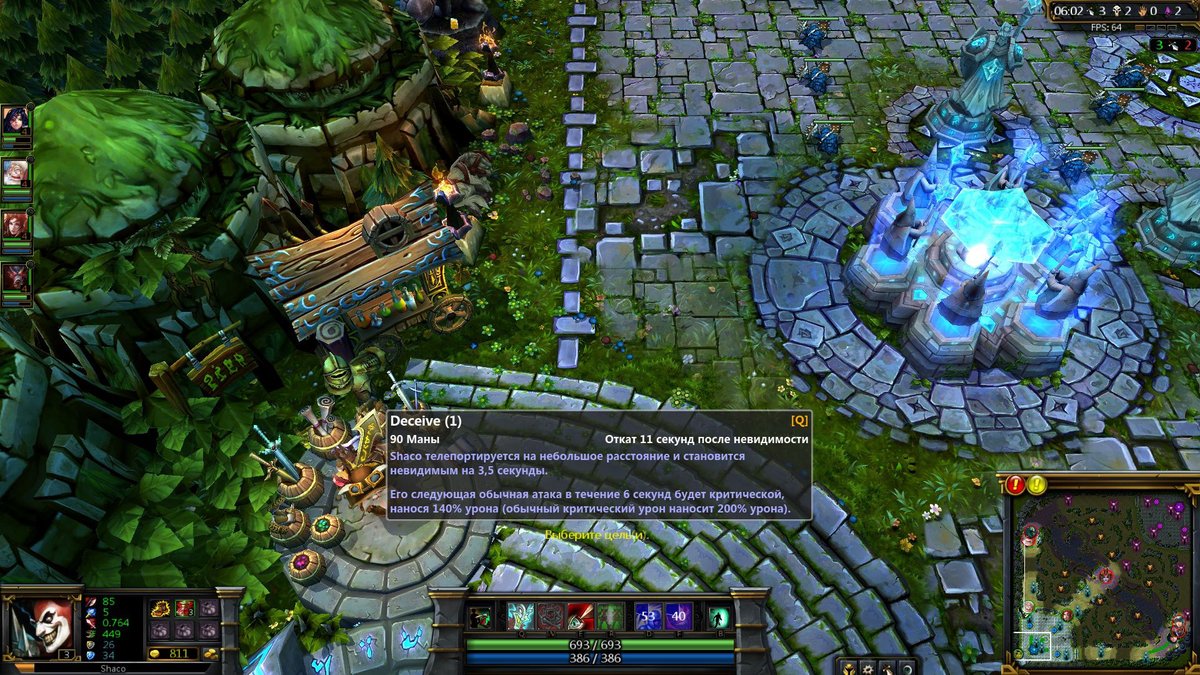
Tired of hearing "Macs can't game?" Good news for League of Legends fans – that's simply not true anymore. Playing league on a mac is not only possible, but with the native client and Apple's silicon advancements, it can be a surprisingly smooth experience.
At a glance:
- Learn how to install and configure League on a Mac for optimal performance.
- Discover tips to boost your FPS and minimize lag during crucial team fights.
- Understand the game's storage footprint and how to ensure ample space.
- Explore alternative games if League isn't quite scratching your itch.
- Weigh the pros and cons of dual-booting Windows for a wider gaming library.
Is Your Mac Ready for the Rift? Understanding System Requirements
Before diving in, let's make sure your Mac can handle the demands of League of Legends. Riot Games provides both minimum and recommended system specifications. Even if your Mac meets the minimum, aiming for the recommended specs will lead to a much more enjoyable gaming experience.
| Feature | Minimum Requirements | Recommended Requirements |
|---|---|---|
| CPU | Intel Core i5-750 | Intel Core i5-3300 |
| GPU | AMD HD 6570, Intel HD 4600 | AMD Radeon HD 6950, Intel UHD 630 |
| VRAM | 1 GB | 2 GB |
| RAM | 2 GB | 4 GB |
| Storage | 12GB HDD | 16GB SSD |
| Operating System | macOS 10.13.6 (High Sierra) | macOS 11 (Big Sur) |
| Key takeaway: Pay close attention to the GPU (graphics card) and storage. An SSD (Solid State Drive) significantly reduces loading times. |
Step-by-Step Installation: Summoner's Rift Awaits
Getting League of Legends up and running on your Mac is a straightforward process:
- Create a Riot Games Account: If you don't already have one, head to the official League of Legends website and sign up.
- Download the Mac Installer: Locate the Mac installer on the League of Legends website and download it to your computer.
- Run the Installer: Double-click the downloaded file and follow the on-screen instructions to install the game.
- Log In: Launch the game and log in using your Riot Games account credentials.
- Update Time: The client will automatically check for and download any necessary updates. This might take a while, so grab a coffee.
Optimizing Performance: From Lag to Legend
Even if your Mac meets the recommended specs, optimizing your settings can make a world of difference. Here's how to squeeze every last frame per second (FPS) out of your machine for smoother league on a mac gameplay:
- Enable Metal API: In the game's graphics settings, make sure the Metal API is enabled. This leverages Apple's graphics framework for better performance.
- Close Background Apps: Before launching League, close any unnecessary applications running in the background. These can consume valuable resources.
- Tweak Graphics Settings: Experiment with the in-game graphics settings. Lowering settings like shadows and effects can significantly boost FPS. A good starting point is setting the graphics video settings to “Increased Performance”.
- "Hide Eye Candy": Toggle on "hide eye candy" in the settings menu to suppress unneeded visuals.
- Interface Tweaks: Disable HUD animations, emote bubble display, and fist bumps in the “Interface” setting tab for a small but noticeable boost.
- Frame Rate Cap: Adjust the frame rate cap to match your monitor's refresh rate. This prevents your Mac from rendering unnecessary frames, reducing strain and heat.
- Sound FX Volume: Set sound FX volume to max to ensure important audio cues aren't missed.
Example: On an older iMac, lowering the shadow quality from "High" to "Medium" resulted in a consistent 15-20 FPS increase.
Storage Considerations: Making Space for Mayhem
League of Legends requires a decent chunk of storage space.
- The initial installer is relatively small (around 70 MB).
- However, after installation and updates, the game can take up approximately 22 GB of space.
- It's always a good idea to leave an extra 5-10 GB of free space for game updates and temporary files.
- Pro Tip: Installing the game on an SSD (Solid State Drive) will significantly improve loading times compared to a traditional HDD (Hard Disk Drive).
Navigating Apple Silicon: M1, M2, and M3
Apple's transition to its own silicon (M1, M2, and M3 chips) has been a boon for gaming on Macs. These chips offer impressive performance and efficiency.
- League of Legends runs well on Apple Silicon Macs, even through Rosetta 2 (the translation layer that allows apps designed for Intel processors to run on Apple Silicon).
- You can generally expect playable frame rates even on base-model MacBook Airs.
- For higher frame rates and better graphics settings, opt for a Mac with more RAM and a more powerful M-series chip (e.g., M1 Pro, M1 Max, M2 Pro, M2 Max, M3).
Real-world Performance: - M1 Max (32 GB RAM): 90+ FPS on Very High settings
- M1 Pro (16 GB RAM): 70+ FPS on Medium settings
- M1 (13-inch, 8 GB RAM): 80-100 FPS on High settings
- M1 MacBook Air: 60 FPS on Max settings
Not Feeling the Rift? Exploring Alternatives
Maybe League of Legends isn't quite your cup of tea, or you're looking for something different. Here are a few alternative MOBA (Multiplayer Online Battle Arena) games you can play on your Mac:
- Dota 2: A complex and strategic MOBA with a steep learning curve.
- Heroes of the Storm: A more accessible and faster-paced MOBA with heroes from various Blizzard franchises.
- Smite: A third-person MOBA that offers a unique perspective on the genre.
- Vainglory: A mobile MOBA that's also available on Mac.
- Paladins: A team-based shooter with MOBA elements.
Dual-Booting Windows: Expanding Your Gaming Horizons
For serious gamers, dual-booting Windows on a Mac using Boot Camp Assistant can open up a wider range of gaming possibilities. This allows you to run games that aren't available on macOS or that perform better on Windows.
Pros:
- Access to a wider range of games.
- Potentially better performance for some games due to better optimization for Windows.
Cons: - Requires creating a partition on your hard drive and installing Windows.
- Requires you to choose between macOS and Windows each time you start your Mac.
- Takes up valuable disk space.
Before you proceed: Ensure your Mac is compatible with Boot Camp and that you have a valid Windows license. Consider disk space carefully.
League on a USB Drive: Gameplay on the Go
Want to play League on multiple Macs without repeated installations? You can copy the game to a USB drive.
- Download the League of Legends installer.
- Install the game onto a USB drive with ample storage space (ideally USB 3.0 or higher for speed).
- Plug the USB drive into any compatible Mac computer.
- Launch the game directly from the USB drive.
Pros:
- Portability - game accessible on multiple devices.
- No installation required on each individual Mac.
Cons: - Performance limitations dependent on USB drive speed.
- Slower loading times compared to internal SSD.
- Storage limits imposed by the USB drive's capacity.
Remember to back up your USB drive regularly to prevent data loss and only use a reputable USB for best performance.
Quick Answers: Common Questions About League on a Mac
- Can I play League of Legends on a Mac with an M1 chip? Yes! League runs very well on Apple Silicon Macs.
- Will League run on older Macs? It depends on the specifications. Check the system requirements to see if your Mac is compatible.
- Why is my League game lagging? Try optimizing your graphics settings, closing background apps, and ensuring your drivers are up to date.
- How much storage space does League of Legends need? Approximately 22 GB after installation and updates.
For more background on how to get League running, you might find Options, ranked by likely effectiveness: 1. LoL on Mac: Guide 2. Play League on Your Mac 3. Mac LoL: Your Complete Guide 4. Playing LoL on macOS 5. Mac League of Legends setup helpful.
Your Turn: From Setup to Summoning
Ready to dominate the Rift on your Mac? Here's a quick-start guide:
- Check System Requirements: Ensure your Mac meets at least the minimum specifications.
- Download and Install: Download the Mac installer from the official League of Legends website and follow the installation instructions.
- Optimize Settings: Adjust your graphics settings for the best balance between performance and visual quality.
- Close Background Apps: Before launching League, close any unnecessary applications.
- Jump In! Log in and start playing!
With the native client and the power of modern Macs, enjoying League of Legends on macOS is easier than ever. Good luck, summoner!