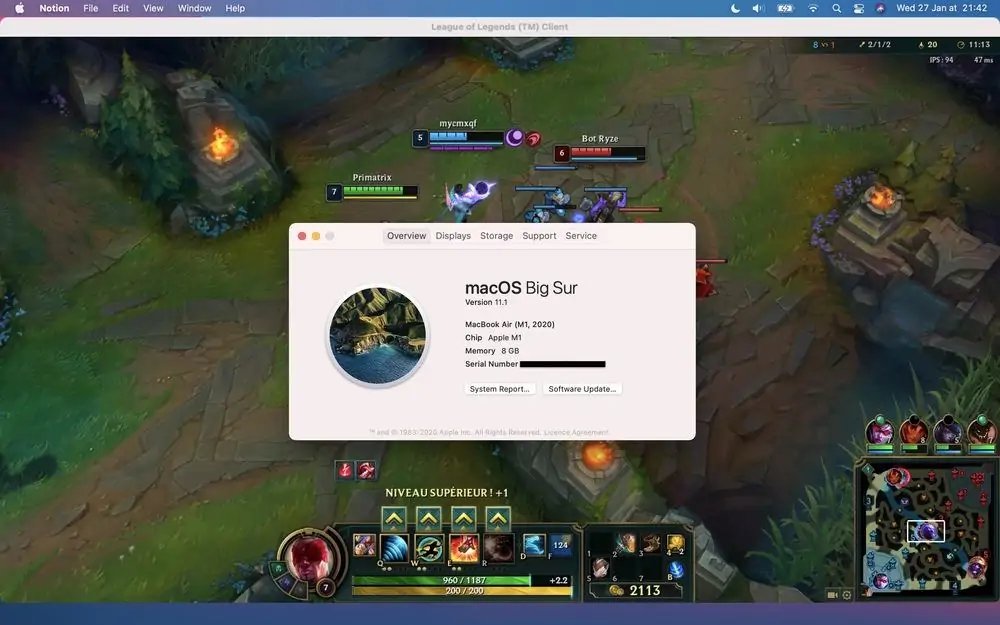
Want to jump into Summoner's Rift on your Mac? It's definitely possible, but before you queue up, understanding your Mac's capability to run League of Legends (LoL) smoothly is key. This guide dives into compatibility, performance tweaks, and even alternatives if your Mac isn't quite up to par. Let’s get you playing, or ready for an upgrade, faster.
At a glance:
- Determine if your Mac meets the minimum or recommended system requirements.
- Learn performance tweaks to optimize your LoL gameplay on macOS.
- Understand the performance differences between Intel-based Macs and Apple Silicon Macs.
- Explore alternative games if League of Legends isn't an optimal fit for your hardware.
- Weigh the pros and cons of dual-booting Windows for potentially better performance.
Is Your Mac Ready for Summoner's Rift? System Requirements Unveiled
Before downloading anything, let’s check if your Mac can actually run LoL. Riot Games provides both minimum and recommended system specifications. Think of the minimum requirements as the "barely playable" tier, while the recommended specs offer a much smoother and enjoyable gaming experience. Be honest with yourself about your hardware here.
Minimum System Requirements:
- macOS X 10.10 (Yosemite) or later
- Intel Core i3
- 4GB RAM
- NVIDIA GeForce 8600M GT / AMD Radeon HD 2600 / Intel HD Graphics 3000 or better
- 8GB available storage
Recommended System Requirements: - macOS X 10.15 (Catalina) or later
- Intel Core i5
- 8GB RAM or more
- NVIDIA GeForce GTX 560 / AMD Radeon HD 6870 or better
- SSD with at least 16GB available
Decoding the Specs: - macOS Version: Check your macOS version by clicking the Apple icon in the top-left corner and selecting "About This Mac."
- Processor: The Core i3/i5 refers to Intel's processor family. Again, "About This Mac" will tell you what you have.
- RAM: Random Access Memory. More is generally better, especially for multitasking and gaming.
- Graphics Card: This is crucial! The graphics card renders the game's visuals. Integrated Intel HD Graphics might struggle, especially on older models.
- Storage: LoL requires space for installation and updates. An SSD (Solid State Drive) significantly improves loading times compared to a traditional HDD (Hard Disk Drive).
If your Mac barely meets the minimum requirements, expect lower frame rates and potential lag, especially during intense team fights. Upgrading your RAM or switching to an SSD can make a noticeable difference.
Installation: From Download to Victory (Almost)
Okay, your Mac should run LoL. Here’s how to get it installed:
- Download the Installer: Head to the official Riot Games website and download the macOS installer.
- Create/Login to a Riot Account: If you don't have one already, create a Riot Games account. This is separate from your Apple ID.
- Install the Game: Run the installer and follow the on-screen prompts. It's a fairly straightforward process.
- Update and Patch: After installation, the game will automatically check for and download any necessary updates or patches. This might take a while, so be patient.
Once the installation and patching are complete, you're ready to launch the game and dive into the tutorial. If you're looking for a broader overview of the process, check out Play LoL on your Mac for a step-by-step guide.
Maximizing Performance: Tweaking Settings for Smooth Gameplay
Even if your Mac meets the recommended specs, you might still experience performance issues, especially on older models. Here are some tweaks you can make to optimize your gameplay experience:
- Lower Graphics Settings: Reduce the graphics quality to "Medium" or even "Low." This will significantly improve frame rates. Experiment to find a balance between visual quality and performance.
- Enable Metal: In the game's graphics settings, ensure that Metal is enabled. Metal is Apple's graphics API and can offer better performance on macOS.
- Close Background Apps: Close any unnecessary applications running in the background. These can consume valuable system resources and impact LoL's performance.
- Adjust Effects and Shadows: Reducing or disabling special effects and shadows can also improve frame rates. These visual elements can be resource-intensive.
- Disable "Shake mouse pointer to locate": This Accessibility setting can cause unexpected lag. Disable it under System Preferences -> Accessibility -> Display.
- Turn off Hot Corners: Hot Corners can also interfere with gameplay. Disable them here: Apple Menu -> System Preferences -> Desktop & Screen Saver -> Screen Saver -> Hot Corners
Example: - A 2017 MacBook Pro with integrated graphics might struggle to run LoL smoothly on high settings. By lowering the graphics quality to "Medium" and closing background apps, you can achieve a playable frame rate.
Apple Silicon vs. Intel: The Performance Showdown
If you're considering upgrading your Mac, the Apple Silicon (M1/M2/M3) chips offer a significant performance advantage over older Intel-based Macs. Here’s a quick comparison:
- Apple Silicon (M1/M2/M3): These chips are optimized for macOS and deliver excellent performance in League of Legends. Expect high frame rates and smooth gameplay, even on higher graphics settings.
- Intel-based Macs: Performance varies depending on the specific model and graphics card. Older Intel Macs with integrated graphics might struggle to run LoL smoothly, while newer models with dedicated graphics cards can offer a decent experience.
FPS Examples: - M1 Max (32GB RAM): 90+ FPS on Very High settings
- M1 Pro (16GB RAM): 70+ FPS on Medium settings
- M1 (13-inch, 8GB RAM): 80-100 FPS on High settings
- M1 MacBook Air: 60 FPS on Max settings
Rosetta 2:
Apple Silicon Macs use Rosetta 2 to translate Intel-based applications. While this introduces a slight performance overhead, the overall performance is still generally better than older Intel Macs. Note that native ARM support is not officially supported.
Alternatives to Summoner's Rift: Other Games to Consider
If your Mac struggles to run League of Legends, don't despair! There are other MOBA (Multiplayer Online Battle Arena) games that might be a better fit for your hardware:
- Dota 2: Another popular MOBA game that might have slightly different system requirements. Check the Steam page for details.
- Heroes of the Storm: A more casual MOBA experience with shorter matches.
- Smite: A third-person MOBA that might offer better performance on lower-end Macs.
- Vainglory: Originally designed for mobile devices, Vainglory can also be played on macOS.
- Paladins: A team-based shooter with MOBA elements.
Dual-Booting Windows on Mac: A Last Resort?
If you're determined to play League of Legends at the highest possible settings on your Mac, you could consider dual-booting Windows using Boot Camp Assistant. This allows you to install Windows on a separate partition of your hard drive and switch between macOS and Windows when you start your Mac.
Pros:
- Potentially better gaming performance in Windows due to better driver support and optimization.
- Access to a wider range of games that might not be available on macOS.
Cons: - Requires disk space allocation for the Windows partition.
- More complex setup process.
- Requires purchasing a Windows license.
Steps to Dual Boot:
- Check computer compatibility.
- Create a partition for Windows.
- Download Windows ISO.
- Use Boot Camp Assistant to create a bootable USB.
- Install Windows on the new partition.
- Configure boot preferences.
Is it worth it?
Dual-booting Windows is a more advanced solution and might not be necessary if you're happy with the performance you can achieve in macOS. Consider it only if you're experiencing significant performance issues or want to play games that are not available on macOS.
Playing LoL from a USB Drive: The Portable Solution
For users who move between multiple Macs, or desire to keep LoL isolated from their primary system, installing the game on a USB drive offers a portable solution.
Steps:
- Prepare a sufficiently sized USB drive (64GB or larger recommended) with adequate free space.
- Download the League of Legends installer onto the USB drive.
- Install League of Legends directly onto the USB drive.
- When you want to play, plug the USB drive into any compatible Mac and launch the game directly from the drive.
Limitations:
- USB drive speed can significantly impact loading times and overall performance, impacting smooth gameplay. A high-speed USB 3.0 or USB-C drive is recommended.
- Limited storage space of the USB drive may restrict the ability to install large game updates or additional software.
Quick Answers: Addressing Common Questions about LoL on Mac
Here are some quick answers to frequently asked questions about playing League of Legends on Mac:
Q: Is League of Legends free to play?
A: Yes, League of Legends is a free-to-play game. You can download and play it without paying anything.
Q: Can I play with my friends who are on Windows?
A: Yes, cross-platform play between Mac and Windows is supported. You can play with your friends regardless of their operating system.
Q: Will I lose my progress if I switch from Windows to Mac (or vice versa)?
A: No, your game progress is tied to your Riot Games account, not your operating system. You can log in to your account on any computer and access your progress.
Q: Do I need a fast internet connection to play League of Legends?
A: Yes, a stable internet connection is required to play League of Legends. A wired connection is generally more reliable than Wi-Fi.
Your LoL on Mac Playbook: Minimizing Lag, Maximizing Fun
Let's distill everything into a quick, actionable playbook to get you gaming ASAP:
- Assess Your Hardware: Honestly evaluate your Mac against the system requirements. Don't try to force a bad match.
- Optimize Settings: Start with low graphics settings and gradually increase them until you find a balance between visual quality and performance. Close background apps!
- Consider an Upgrade: If you're consistently experiencing performance issues, think about upgrading your RAM or switching to an SSD. An upgrade to Apple Silicon can be a game changer.
- Explore Alternatives: Don't be afraid to try other MOBA games that might be a better fit for your hardware. Dota 2 and Heroes of the Storm are solid options.
- Dual Boot (If Desperate): Only consider dual-booting Windows if you've exhausted all other options and are still experiencing unacceptable performance.
By following these steps, you can significantly improve your League of Legends experience on your Mac, or at least make an informed decision about whether it's the right platform for you. Now get out there and dominate the Rift!